What this is

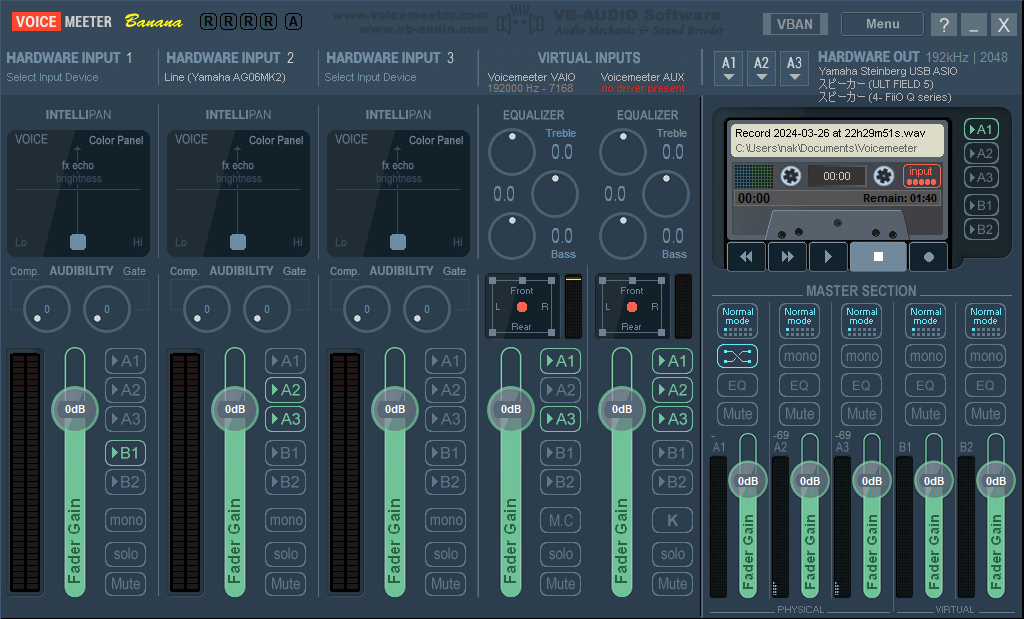
This is a note on how I fixed an issue with Voicemeeter Banana where its virtual audio I/O, Voicemeeter AUX Input, suddenly started showing “no driver present” in red and stopped producing any sound.
Environment
- OS: Windows 11 Pro 25H2
- Voicemeeter Banana: I don’t remember the exact version
Symptoms
- As shown in the screenshot above, “no driver present” appeared in red under Voicemeeter AUX Input.
- No sound came through Voicemeeter AUX Input, regardless of what I routed to it.
- The Voicemeeter application itself remained responsive and could be operated normally.
- Voicemeeter Input, the other Virtual Input, continued to work normally and produced audio without any issues.
- The HARDWARE INPUT section also worked normally and received audio as expected.
- I could run Restart Audio Engine, but it did not resolve the issue.
Cause
The issue appears to have been caused by an incomplete Voicemeeter Banana update, which left the old VAIO drivers installed alongside the current Voicemeeter configuration.
In other words, the application and its virtual audio drivers were no longer in a consistent state.
What I checked
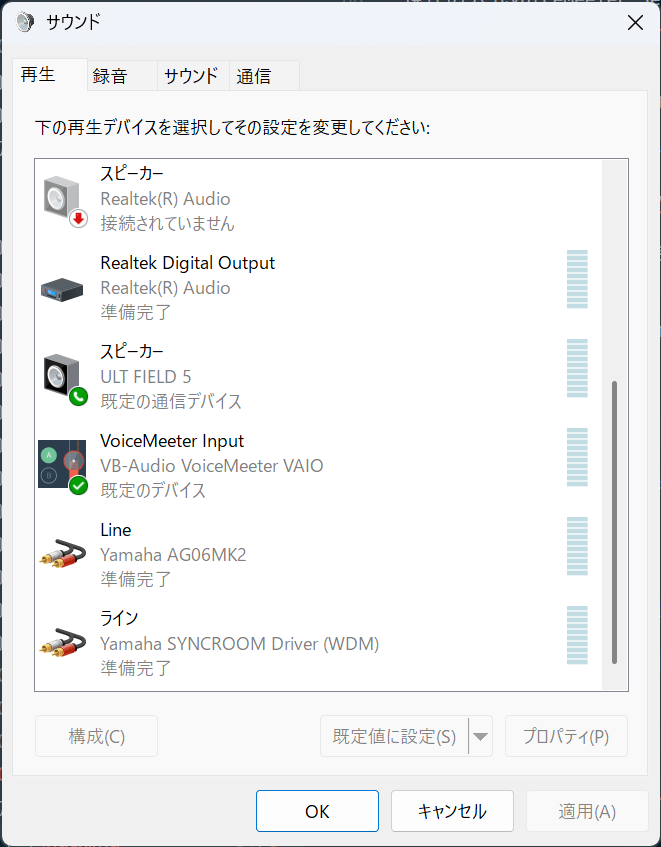
I opened the Sound control panel by pressing Windows + R and running mmsys.cpl1, then checked the Playback tab to see whether both “VoiceMeeter Input” and “VoiceMeeter Aux Input” were present.
At this point, only “VoiceMeeter Input” was listed. “VoiceMeeter Aux Input” was completely missing.
I also confirmed that the device was not simply hidden because it was disabled or disconnected.
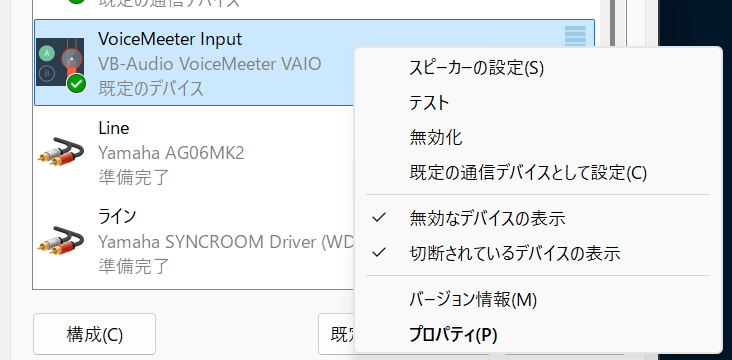
This indicated that Windows was not recognizing the virtual audio device for Voicemeeter AUX Input at all, which suggested that the problem was caused by an inconsistency in the virtual audio drivers.
Research
After looking into the issue, I found that Voicemeeter changed the architecture of its VAIO drivers in 2024.
Previously, VAIO, AUX, and VAIO3 were handled as separate drivers. With the newer architecture, a single VAIO driver can provide up to eight Virtual I/O devices.
I suspect this change was related to the problem. The Voicemeeter application itself had been updated, but some of the old VAIO/AUX drivers remained installed, leaving the application and drivers in an inconsistent state.
Fix
Since the application and drivers appeared to be out of sync, I removed both and performed a clean reinstall.
These are the steps I followed:
- Save your Voicemeeter settings first if you want to keep them.
- Download the latest Voicemeeter Setup from the official website.
- Run the downloaded Voicemeeter Setup as administrator, select REMOVE, and uninstall Voicemeeter.
- Restart the PC.
- Open Device Manager and select View → Show hidden devices.
- Check the following categories in Device Manager for any old VB-Audio Voicemeeter devices. If any remain, uninstall them.
- Sound, video and game controllers
- Audio inputs and outputs
- Run Voicemeeter Setup as administrator and install Voicemeeter again.
- Restart the PC.
After completing these steps, the “no driver present” message disappeared, and Voicemeeter AUX Input started working normally again.
You can also open it from Settings → System → Sound → More sound settings. ↩︎